4Screenshots User Manual
For 4Screenshots 0.2.0, October 2026. Dotted underline: words that are not already the app's own.
4Screenshots freezes the screen so you can select a region or take the whole screen, mark it up, read the text in it, and save, copy or send it to another app. It asks 4Zones for the screen. When 4Zones cannot give it, Android asks you which screen to share, every time. The app has no internet access.
1. Starting a capture
Open 4Screenshots and press Capture the screen, or use your own keyboard shortcut or gesture. The shortcut and the gesture fire a link; the main page lists them under How to start a capture:
| Link | What it does |
|---|---|
fourscreenshots://region | to pick a region |
fourscreenshots://screen | for the whole screen |
A link does nothing on its own. It needs something to fire it:
- In 4Zones, add it under Links, then give that link a keyboard shortcut.
- In a gesture app, set a gesture to open the link.
- Not from a web page. A browser cannot fire these links, on purpose: a page you visited could otherwise have taken the whole screen with no dialog and no press in this app.
Most people give fourscreenshots://region a key they can reach with one hand, because it is
the one they use all day.
The picker opens on the screen your pointer is on. If you are working on a monitor, it opens there, not on the phone.
One capture at a time: if you press your shortcut while a picker is open, it is brought to the front and says A capture is already open.
2. The picker
The captured screen fills the picker, with a panel of controls over it. At the top of the panel you choose what a drag does:
| Control | Key | What it does |
|---|---|---|
| Selection | S | Select a region |
| Screen | W | The whole screen |
With Remember the last selection on (section 6), the region you chose last time is ready again.
The panel itself can be moved and sized:
- Its handle: drag to move this panel. Long-press: back to its usual place and size.
- Larger and Smaller: Ctrl + wheel, or Ctrl + = and Ctrl + −.
- Its right edge: drag to make this panel narrower and taller, or wider.
- Panel settings opens the settings in section 6.
3. Marking it up
Each tool has a key:
| Tool | Key |
|---|---|
| Move | V |
| Pen | P |
| Highlight | H |
| Line | L |
| Arrow | A |
| Box | R |
| Oval | O |
| Label | X |
| Blur | B |
Size: the size slider, or 1, 2, 3 for small, medium, large. Undo and Redo are beside it.
There are six colours: red, yellow, green, blue, white and black. Choosing one sets the colour of the next mark you draw. Marks you have already drawn keep the colour they were drawn in.
Move (V) picks up a mark you have already drawn, so you can slide it somewhere else or resize it. Every other tool draws something new.
Some keys are not in any tooltip:
| Key | What it does |
|---|---|
| Ctrl + Z | Undo |
| Ctrl + Y, or Ctrl + Shift + Z | Redo |
| Delete | Remove the mark you have picked up |
Blur (B) is different from the others. It does not draw over what is underneath, it destroys it. The pixels inside a blur are scrambled, not covered, so nothing can be recovered from the saved picture by sharpening it or picking the blur apart.
While you are still in the picker you can undo a blur like any other mark, because the original picture is still there. Once you save, what was under the blur is gone.
Closing with marks on the picture asks once more: Press again to discard your marks.
4. Save, Copy, Share
The bottom of the panel acts on the picture:
| Control | Key | What it does |
|---|---|---|
| Save | Enter | Save and copy |
| Copy | C | Copy without saving |
| Share | E | Share with another app |
| Text | T | Read the text in it (section 5) |
| ✕ | Esc | Close |
Saving tells you where the picture went: Saved to Pictures/4Screenshots/… and copied. Your quick-share buttons sit on the panel too (section 8).
If part of the picture is black, 4Screenshots says which part: The top-left part came back blank. An app on screen does not allow screenshots. The picture is saved as it is.
5. Reading the text
Text (T) reads the text in your selection and opens it in a small window, Reading the text… then: Check the text, correct it if needed, then press Enter to copy it.
- Copy text (Enter) copies it. Shift + Enter starts a new line.
- If there is none: No text found in that area.
Tables
As table arranges the same text in rows and columns, separated by tabs, to paste into a spreadsheet. It says what it found: 4 rows × 3 columns, separated by tabs. Press Enter to copy, then paste into a spreadsheet. As text goes back.
- Save .csv saves the table as a spreadsheet file in Documents/4Screenshots.
- Share .csv sends it as a spreadsheet file to another app.
When the words do not make a table, it says why and shows the text:
| Message |
|---|
| Not a table: there are too few words. Showing the text. |
| Not a table: everything is on one line. Showing the text. |
| Not a table: nothing lines up in columns. Showing the text. |
| Not a table: the rows do not line up well enough to trust. Showing the text. |
6. Panel settings
Panel settings, on the panel, opens Picker panel:
| Setting | What it does |
|---|---|
| Transparency | How much of the picture shows through the panel. |
| Panel size, landscape and portrait | One size for each way the screen is held. |
| Panel width, landscape and portrait | Likewise for the width. |
| Panel layout, landscape and portrait | Horizontal or Vertical (section 7). |
| Share icon size | The size of your quick-share buttons. |
| Remember the last selection | The region you chose last time is ready next time. |
| Fill the screen | The picker takes the whole display. May drop you out of DeX on some devices. |
| Reset the panel | The panel is back in its usual place and size. |
7. Panel layout
Each orientation has its own Panel layout: Horizontal or Vertical.
Vertical draws the panel as a narrow column that stands at the side of the screen, which suits a tall window or a monitor where the width is better spent on the picture. Each of your quick-share apps gets its name beside its icon, which the horizontal panel has room for only a few of.
The width setting disappears for an orientation you have set to vertical. A column is as wide as it needs to be, so there is nothing for that slider to do.
8. Quick share
On the main page, Quick share from the picker: add the apps you send screenshots to, such as Claude or ChatGPT, or a shortcut such as one WhatsApp chat. Each gets a button in the picker that sends your capture straight to it, without the share sheet. They appear in this order.
- Add an app lists every app that accepts a picture.
- Add a shortcut asks an app for one of its shortcuts, such as one chat.
- ↑ Move earlier, ↓ Move later, ✕ Remove.
An app gets the picture. A shortcut whose row is marked opens the chat; you paste opens its chat with the picture on your clipboard, ready to paste, and its button in the picker says Open … (paste the picture).
When a shortcut cannot be added, the app says so: No shortcut was added., … would not give a shortcut., or, for a shortcut that only opens a page, This … shortcut only opens a page, so it cannot take a picture. Add … as an app instead.
A WhatsApp chat added as a shortcut now receives the picture directly, instead of opening the chat with the picture on your clipboard for you to paste.
A chat you added before this version still works the old way. Remove it and add it again to get the new behaviour.
9. 4Zones
4Screenshots asks 4Zones for the screen. When 4Zones cannot give it, Android asks you which screen to share, every time, and the permission is given back as soon as the picture is taken: holding it breaks Samsung's own screenshot.
Without 4Zones installed, 4Screenshots says so just before Android asks: 4Zones is free and captures without this prompt. Google Play opens 4Zones' page; Use screen sharing goes on to Android's question; Cancel takes nothing.
If 4Zones is installed but cannot give the screen for a reason you can fix, 4Screenshots shows 4Zones' own sentence first, with the same Use screen sharing.
Turn 4Screenshots on in 4Zones
After installing, turn 4Screenshots on in 4Zones › Settings › Connected apps, or captures go through the sharing prompt instead.
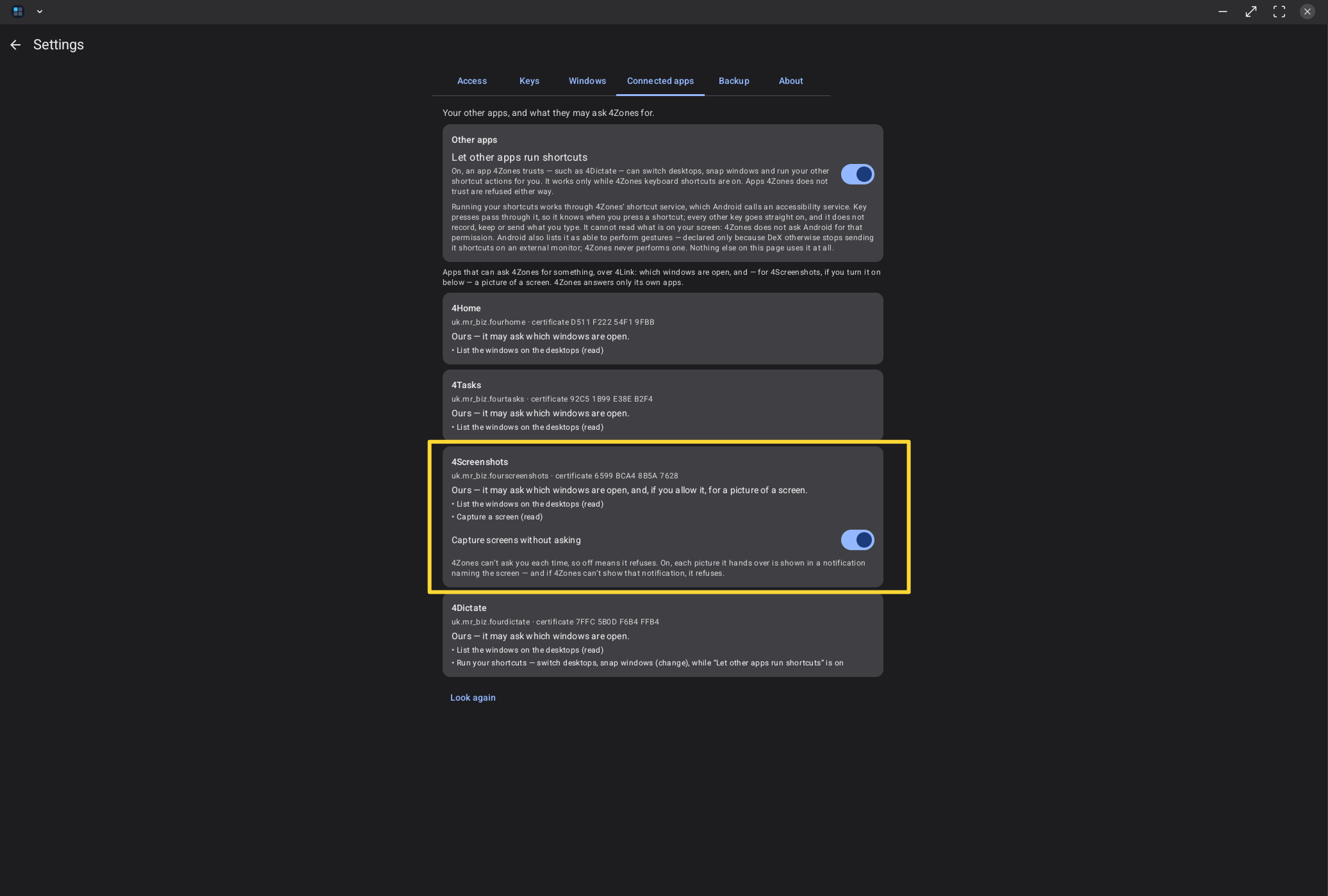
While it is off, 4Screenshots shows 4Zones' reason before Android's prompt: Screen capture for this app is off in 4Zones. Turn it on in 4Zones: Settings › Connected apps.
Two things are worth knowing on a wireless DeX monitor.
Saying yes to Android's screen sharing question ends the cast. The monitor goes dark and there is no picture to capture. On a wireless monitor you need 4Zones, not the prompt.
4Zones also has to have its window access running. If it is not, 4Zones cannot give the screen and 4Screenshots falls back to the prompt.
10. The notification
While Android's screen sharing is in use, 4Screenshots shows a notification, Ready to capture: Use your shortcut, or tap Capture. It has two buttons, Capture and Stop (you'll be asked again). Its channel in Android's settings is Screen capture.
11. Messages and troubleshooting
| Message | Try |
|---|---|
| The screen did not send a picture in time. Try again. | Press your shortcut again. |
| Screen capture has stopped. Open 4Screenshots to allow it again. | Open 4Screenshots. |
| 4Screenshots needs permission to capture the screen. Open it and choose the screen to capture. | As it says. |
| Copied, but the file could not be saved. | The picture is on the clipboard. |
| The share sheet could not be opened. The image is on the clipboard. | Paste it. |
| The screenshot could not be saved. · The .csv file could not be written. · The text could not be read. | Try again, then send the log. |
Diagnostics ›, at the foot of the main page, shows the app's log. Copy log puts it on the clipboard to paste into a message to [email protected]. The tick box When I add a shortcut, log its shape (what kinds of fields it has, never the number or name) is off until you turn it on.
12. Privacy
The app has no internet access.
See the 4Screenshots privacy policy.
© mr-biz.uk · mr-biz.uk